
Download Snipping Tool – Free Screen Capture & Annotation Software for Windows, Mac, Android & iOS
Snipping Tool is a lightweight, free utility software designed to simplify the process of capturing and sharing screenshots across multiple platforms. Whether you're documenting a bug, creating tutorials, or sharing a quick update, this tool offers a fast and secure way to take rectangular, free-form, window, or full-screen snips. With built-in annotation tools like pens, highlighters, text labels, and arrows, Snipping Tool helps you emphasize key details directly on your screenshots. The app supports seamless clipboard integration and allows instant saving to your device in common formats like PNG, JPEG, and BMP. Ideal for students, professionals, and casual users alike, Snipping Tool combines ease of use with essential functionality—making it a go-to choice for everyday screen capture needs.
Key Features of Snipping Tool
Snipping Tool stands out as a reliable and efficient screen capture solution thanks to its thoughtful design and user-focused features. One of its most praised aspects is the variety of snipping modes: users can choose from rectangular snips for precise selections, free-form snips for irregular shapes, window snips to capture individual application windows, and full-screen captures for comprehensive screenshots. This flexibility ensures that whether you're highlighting a specific error message or documenting an entire workflow, you can tailor your capture to fit your exact needs.
Another major strength lies in the annotation tools. After capturing a snip, users can immediately enhance their image using a range of options. The built-in pen tool allows for freehand drawing, while the highlighter brings attention to important sections. You can also insert text boxes, add arrows, and draw shapes to guide viewers through your screenshot. These features are especially useful for educators creating lesson materials, IT teams reporting issues, or remote workers sharing project updates.
Snipping Tool also supports quick sharing via clipboard, meaning you can copy your snip directly to the clipboard and paste it into emails, documents, or messaging apps without saving a file first. For those who prefer to keep a record, the tool lets you save your screenshots directly to your device with customizable file names and locations. Additionally, the software includes basic editing tools such as cropping and resizing, allowing for minor adjustments without needing to open a separate image editor. All these features are delivered through a clean, minimalist interface that requires no learning curve—perfect for users of all skill levels.
How to Install and Use Snipping Tool
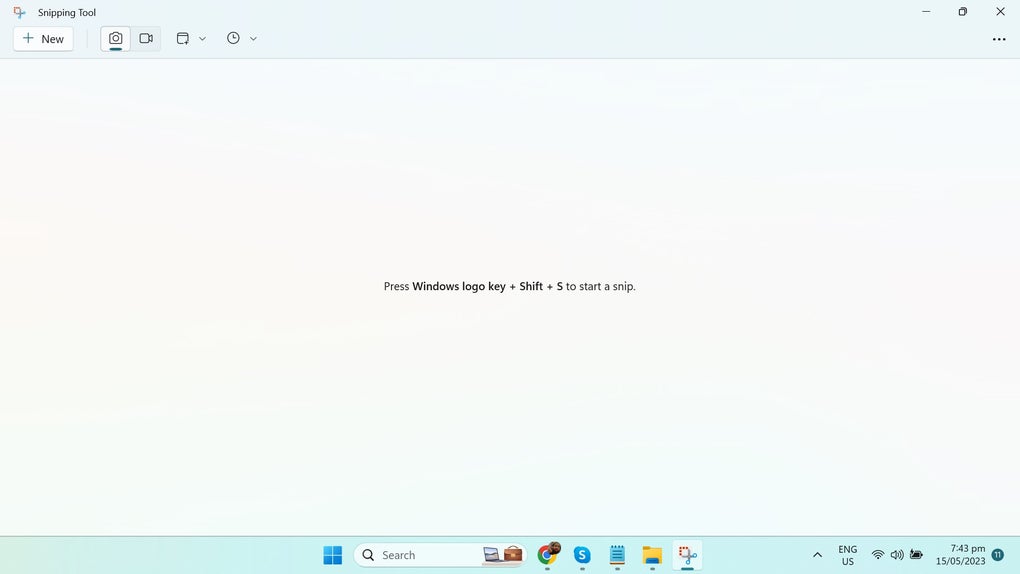
Installing and using Snipping Tool is straightforward, especially for Windows users. On most modern versions of Windows 10 and Windows 11, the tool is already built into the operating system and can be accessed via the Start menu by searching for “Snipping Tool.” Once opened, you’ll see a simple interface with four snip options: New, Mode, and a dropdown menu for selecting your preferred capture type.
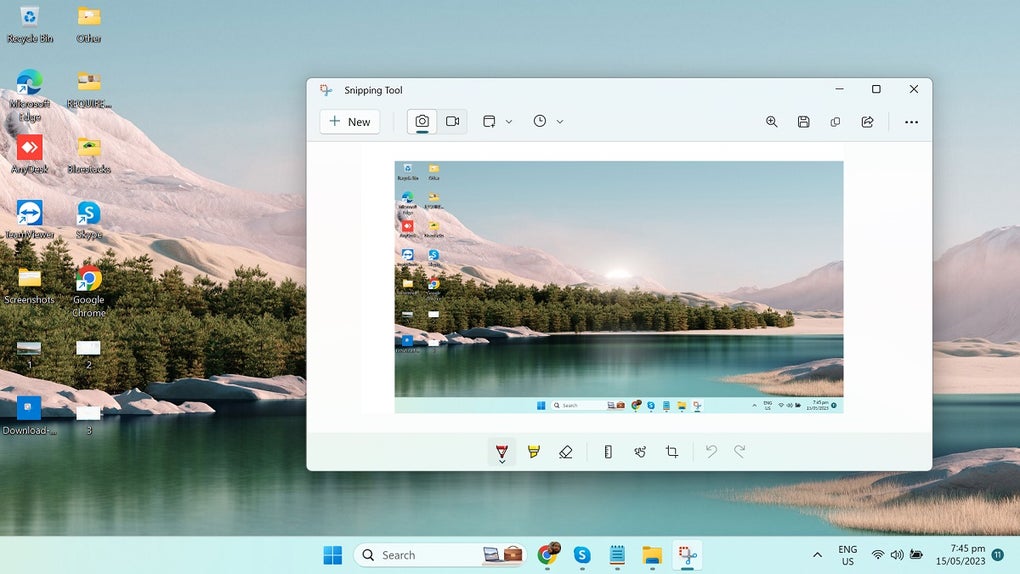
To begin capturing, click “New” and choose your desired snip mode. For example, select “Rectangular Snip” to drag a box around the area you want to capture, or “Window Snip” to click on a specific application window. After capturing, the snip appears in a new window where you can immediately start annotating using the tools on the top toolbar. You can change pen colors, adjust thickness, add text, or highlight areas with the highlighter tool.
Once satisfied, you can save the file by clicking “File” > “Save As” and choose your preferred format—PNG, JPEG, BMP, or GIF. Alternatively, use the “Copy” button to copy the image to your clipboard for immediate use in other applications. For users on Mac, Android, or iOS, the equivalent functionality is available through native tools like Screenshot on macOS, or third-party apps that replicate Snipping Tool’s experience. While the original tool is exclusive to Windows, several free alternatives on the App Store and Google Play offer similar features with cross-platform support.
Compatibility and System Requirements
Snipping Tool is primarily designed for Windows operating systems, with full compatibility across Windows 7, Windows 8, Windows 10, and Windows 11. It runs efficiently on both 32-bit and 64-bit systems and requires minimal system resources—making it ideal for older or low-end machines. The software does not require installation from external sources, as it comes pre-installed on most Windows devices, ensuring a secure and hassle-free experience.
For users on other platforms, the native screenshot tools on Mac (Command + Shift + 4), Android (Power + Volume Down), and iOS (Side Button + Volume Up) offer comparable functionality. However, these tools lack the advanced annotation features found in Snipping Tool. To achieve similar results on non-Windows devices, users can download free third-party apps like Skitch, Lightshot, or Snapseed, which provide enhanced editing and sharing options.
Despite its platform limitations, Snipping Tool remains a top choice for Windows users due to its reliability, speed, and seamless integration with the OS. Its lightweight design ensures it doesn’t slow down your device, and it’s completely free to use with no ads or in-app purchases. Regular updates from Microsoft ensure that the tool remains secure and compatible with new system features, making it a trusted companion for daily tasks.
Pros and Cons of Snipping Tool
- Pros:
- Completely free and secure with no ads or hidden costs
- Simple, intuitive interface suitable for beginners and experts alike
- Multiple snip modes: rectangular, free-form, window, and full-screen
- Powerful annotation tools: pens, highlighters, text, arrows, shapes
- Quick copy to clipboard for instant sharing
- Basic editing features like cropping and resizing
- Pre-installed on most Windows systems—no download required
- Lightweight and fast, with minimal impact on system performance
- Cons:
- Limited to Windows OS; no native version for Mac, Android, or iOS
- Lacks advanced editing tools found in professional software
- Cannot save directly to cloud services (e.g., OneDrive, Google Drive)
- File format options are limited (no PDF or SVG support)
- No built-in timer or delay feature for scheduled captures
- Basic image effects and filters are absent
Frequently Asked Questions (FAQ)
How do I open Snipping Tool on Windows?
You can open Snipping Tool by pressing the Windows key, typing “Snipping Tool,” and selecting the app from the search results. Alternatively, you can access it through the Start menu under “Windows Accessories.” If it’s not available, ensure your Windows is updated to the latest version.
Can I use Snipping Tool on Mac or mobile devices?
Snipping Tool is only available on Windows. However, Mac users can use the built-in screenshot tool (Command + Shift + 4), and Android/iOS users can use their device’s native screenshot function. For enhanced features, consider free apps like Lightshot or Skitch.
What file formats does Snipping Tool support?
Snipping Tool allows you to save screenshots in PNG, JPEG, BMP, and GIF formats. These are standard formats suitable for most sharing and documentation purposes.
Is Snipping Tool safe to download and use?
Yes, Snipping Tool is a secure, free utility provided by Microsoft. Since it’s pre-installed on most Windows systems, you don’t need to download it from third-party sites, reducing the risk of malware or scams.
Can I schedule screenshots with Snipping Tool?
No, Snipping Tool does not have a built-in timer or delay feature. For scheduled captures, you’ll need to use third-party tools or the native screenshot features on your device.
Final Verdict: Is Snipping Tool Worth It?
Snipping Tool remains one of the most reliable and user-friendly screen capture tools available—especially for Windows users. While it may lack advanced features found in premium software like Snagit or Greenshot, its simplicity, speed, and built-in annotation tools make it perfect for everyday use. Whether you're a student taking notes, a professional sharing updates, or a tech support agent documenting issues, Snipping Tool delivers consistent performance without the complexity.
For those who need cross-platform compatibility or more advanced editing, exploring third-party alternatives may be necessary. But for basic, efficient screenshot capture and sharing, Snipping Tool is more than sufficient. It’s free, secure, and always up to date with your Windows system.
Ready to simplify your workflow? Download Snipping Tool today and start capturing, annotating, and sharing with ease—no cost, no hassle.







